
Free
$0
No time limit
- Check my Mac, disk map and every list
- All explanations and info pages
- Move your first 5 items to the Trash
- Activity and Undo, always
An honest disk cleaner for macOS
Clean and Care shows where your disk went, in plain words. It lists everything first, moves only what you confirm to the Trash, and lets you put any of it back.

No cloud.
Your files are checked on your computer. Your files and their contents never leave it.
No subscription.
Buy once for the major version. Looking, lists and undo are always free.
Undo by default.
Removals go to the Trash and can be put back from Activity. Anything that cannot be undone says so first.
No account. No usage tracking. Clean and Care goes online only to check a license key, to send error reports and, when you ask, for app updates.
01 / The honest cleaner
Most cleaners sell fear. Clean and Care tells you what is on your disk and lets you decide, and it says plainly what it will not do.
Left out on purpose
What you get instead
02 / How it works
The Trash is emptied only when you choose to, in Finder. Until then, everything can come back.
One button looks at your whole computer: reclaimable space, the Trash, duplicates, large files, apps and what starts at login. Checking only reads; it never changes anything.
Each finding comes with a familiar name, what it is, and what happens if you remove it. Pick what you want gone. Selecting is never the same as removing.
A review window lists exactly what will move. Right before each move, Clean and Care checks the item again against its protected places, and skips anything that changed.
Activity records every move. Put back one item or a whole batch, to its exact place, without overwriting anything. Undo is always free.
A look inside
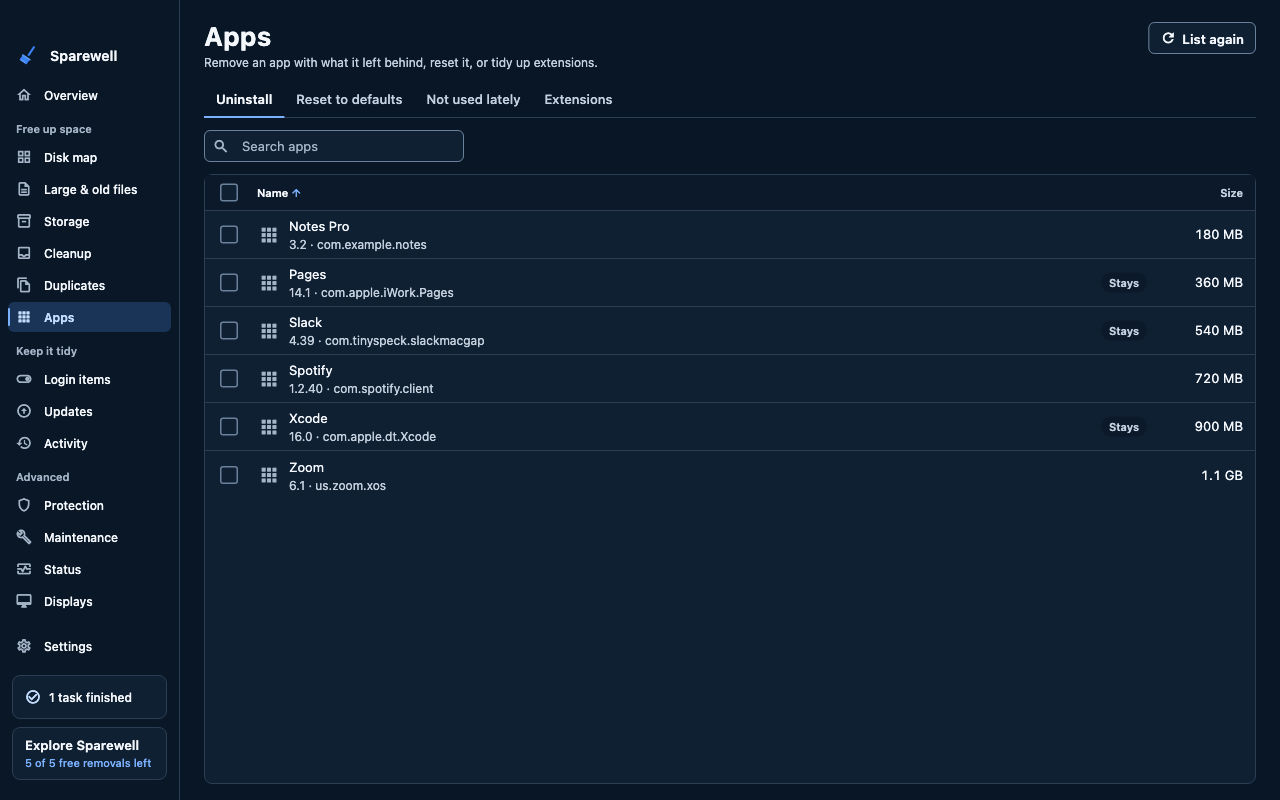
What the app shows you before anything moves: names, sizes and labels you can check.
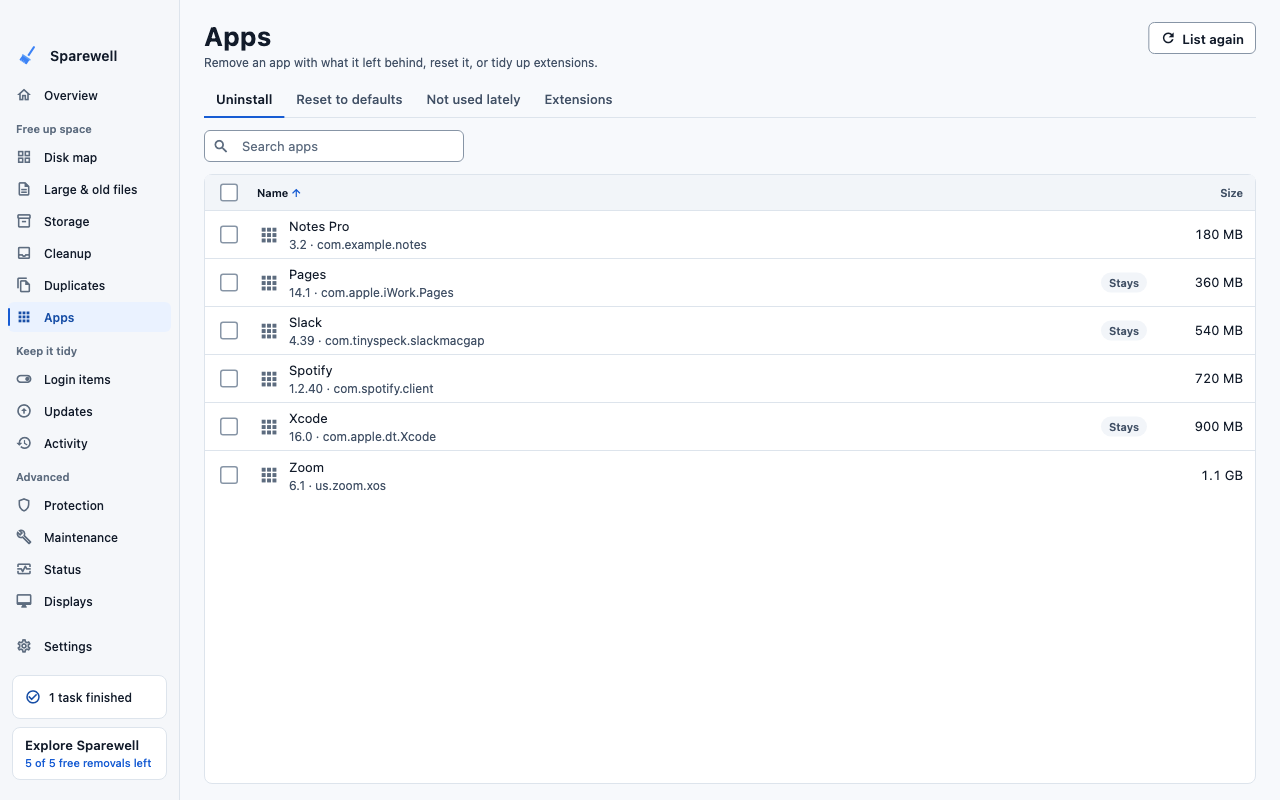
Apps · Remove an app with its leftovers
App screens with example data · English interface
03 / Everything in one place
Built for the 256 GB laptop that keeps filling up. Every list can be sorted, every path is shown in full when you want it, and long checks run in the background.
Macintosh HD
218 GB of 245 GB used
System Data, unpacked
Example from a developer's Mac. Green rebuilds on its own, orange needs a look, grey is yours to remove by hand.
What Clean and Care can clean up
Processor, memory pressure, free disk, battery and network at a glance.
Free space on your desktop (macOS 14+); “Get Reclaimable Space” in Shortcuts.
sparewell --json, --clean, --history and --analyze for scripts.
English, Spanish, German, French, Portuguese (Brazil), Turkish and Japanese.
04 / Protected places
The protection list lives inside the engine, not in the interface. Everything is refused unless it comes through a narrow, tested door, such as a cleanup rule's exact pattern or a leftover named after the app's exact bundle ID.

Never removed, from any page
Just before each item goes to the Trash, Clean and Care looks again: is it still protected, still there, still the same kind of item, not a link, not in the cloud, not an app that is open? If anything changed, it is skipped and you are told why. If the protected list cannot be read, nothing is removed at all.
Today · 14:02
Uninstalled PixelForge, 4 items · 2.9 GB
Today · 13:40
Moved 12 caches to Trash · 6.6 GB
Yesterday · 18:15
PixelForge Export.mov is back where it was.
Monday · 09:30
Emptied the Trash (1.2 GB)
Undo works while items are in the Trash.
05 / Nothing is lost
06 / Compare
See how Clean and Care differs from all-in-one cleaner suites, disk visualizers and cleaning up by hand.
See the comparison →07 / Pricing
Licenses are sold by Lemon Squeezy, our merchant of record, which handles US sales tax, Canadian GST/HST/PST and EU VAT. Prices in CAD and EUR are shown at checkout.
$0
No time limit
$39.99
One-time, 1 computer, plus tax
$59.99
One-time, 3 computers, plus tax
refund policy · license agreement · There is also a license for 5 computers. A later major version may be a paid upgrade.
Trust
Facts you can check, not badges we made up. Omnibus holds no certification of its own; where a provider holds one, we name the provider.
Privacy & compliance in detailStays on this computer
Scanning and cleaning happen on your computer. Your files and scan results are never uploaded.
GDPR
Your files are processed on your computer. Error reports rely on our legitimate interest; you can turn optional diagnostics off.
California privacy (CCPA/CPRA)
We do not sell or share your personal information.
HIPAA: local processing
Your files never reach us, so we do not receive or store protected health information (PHI). Your organization stays responsible for its HIPAA compliance; we do not sign Business Associate Agreements.


Sentry: ISO 27001 and SOC 2 Type 2
Error reports are processed by Sentry, which holds ISO 27001 certification and a SOC 2 Type 2 report.
License stored securely
Your license key is kept in the macOS Keychain, or on Windows in a file that Windows encrypts for your account (DPAPI).




Payments by Lemon Squeezy and Stripe
Website purchases are handled by Lemon Squeezy, a Stripe company and the merchant of record; payments run on Stripe's infrastructure, which holds PCI DSS Level 1 certification. We never see your card.

Mac App Store
If you buy the Mac App Store edition, Apple handles the purchase, payment and refunds.


Microsoft Store
If you buy the Microsoft Store edition, Microsoft handles the purchase, payment and refunds.
08 / Download
The download is the free version. Activate a license in Settings whenever you want to remove more.
Mac App Store editionApps in the Mac App Store must run in Apple's sandbox, so that edition leaves out some features. The edition from this site has everything. See what is missing
Direct download
Some extras need a newer macOS: Launch at login 13+, Shortcuts 13+, desktop widget 14+. The command-line tool needs macOS 14 or later on Apple silicon or Intel. Not supported: macOS 11 and earlier, Windows 7 and 8, 32-bit Windows, Linux.
09 / Questions
It is built to make that very hard. Photos and Music libraries, keychains, cloud folders, Apple's files and system folders are refused by the engine itself, every item is checked again right before it moves, and everything goes to the Trash first, where you can put it back from Activity.
No. Clean and Care reads names, sizes and dates, and for duplicates file contents, only on your computer. There is no account and no usage tracking. It goes online only to check a license key, to send error reports (without your files, but like any internet request with your IP address), and, when you ask, to see whether your apps have updates.
Everything except removing in bulk: check your Mac, the disk map, every list and explanation, and moving your first 5 items to the Trash. Activity and Undo are always free. There is no time limit.
As many as your license is for: 1, 3 or 5 computers, bought once. One key works on Mac and Windows, in any mix. To move it, open Settings > License on the old computer and choose Remove license from this computer, then enter the key on the new one. If the old computer is lost or broken, write to us and we free its activation. See the licenses
Clean and Care gives you disk space back and shows what starts at login and what uses your processor. It does not promise speed-ups, does not “free RAM” (macOS manages memory itself) and shows no scores.
No. The Known adware check compares login items, apps and browser extensions with a short list of known names and says clearly that it is not an antivirus. macOS's own XProtect version is shown in Settings.
Some caches and mail attachments sit in folders macOS protects. Clean and Care explains this in plain words and works without it; with it, it can see more. You can turn it off any time in System Settings.
Yes, in progress. Every page has a Windows version (Recycle Bin, apps, startup apps, winget updates, drivers, maintenance) and it is being tested on real PCs before release.
Apps in the Mac App Store must run in Apple's sandbox, so that edition leaves out some features, such as cleaning system folders, removing apps and the command-line tool. The edition from this site has everything. Features missing in the App Store edition
No cloud · No subscription · Undo built in